 Documentation
Discord Bot
Deploy Nimera Bot and configure the Discord ticket bridge from both Discord and Nimera panel.
Overview
This page is dedicated to Discord bot setup and covers:
- Deploying the Nimera Bot in cloud deploy dashboard.
- Discord-side setup (application, intents, invite, server structure).
- Nimera panel-side setup (Admin -> Discord Bot).
Prerequisites
- A running NimeraCP Panel deployment.
- Access to Nimera dashboard Deploy page.
- Access to Discord Developer Portal.
- Admin permissions in your target Discord server.
Info
Deploy and start your NimeraCP Panel first. The bot deployment depends on the running panel deployment and cannot be deployed before it.
1) Deploy the Nimera Bot
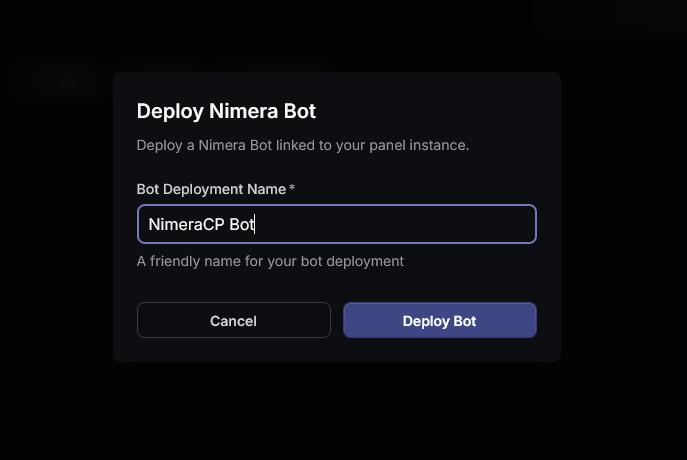
- Open dashboard Deploy page.
- Click Deploy Bot.
- Enter bot deployment name and confirm.
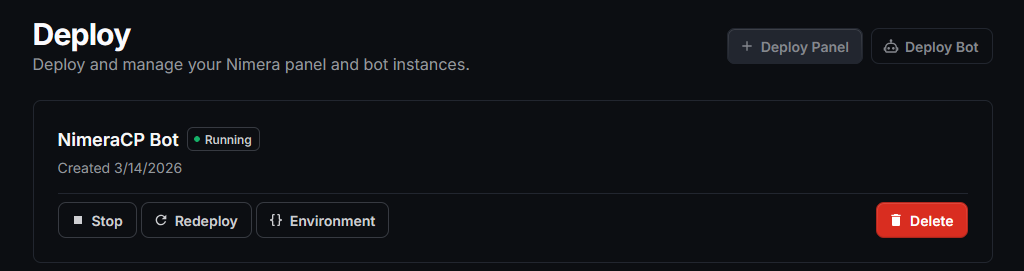
- Wait for deployment status
Running.
Bot env linkage
Cloud bot deployment is linked to your panel deployment and uses:
PANEL_BASE_URL=https://<your-panel-domain>.com
API_KEY=<same-as-panel-api-key>
OUTBOX_POLL_INTERVAL_MS=5000
MESSAGE_CACHE_TTL_MS=300000
PARTYKIT_HOST=ws.nimeracp.com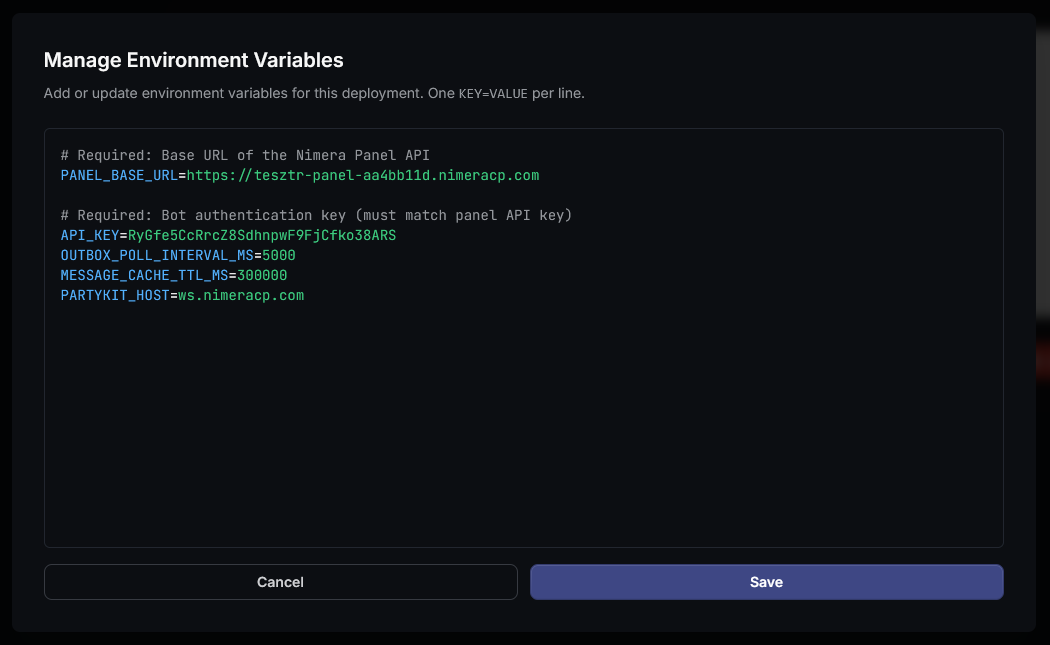
2) Discord side setup
2.1 Create application and bot
- Create a new application in Discord Developer Portal.
- Create the bot user inside the application.
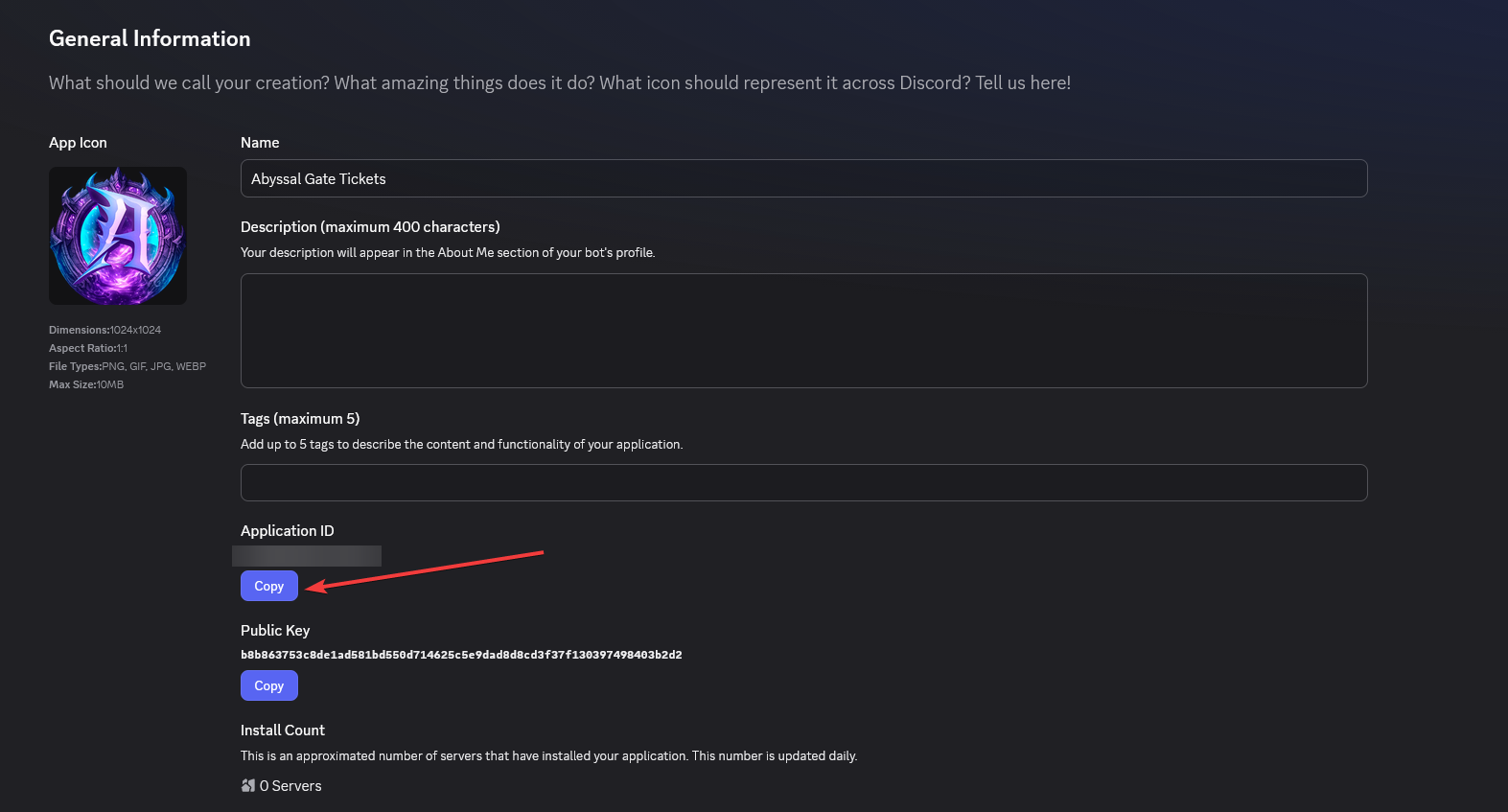
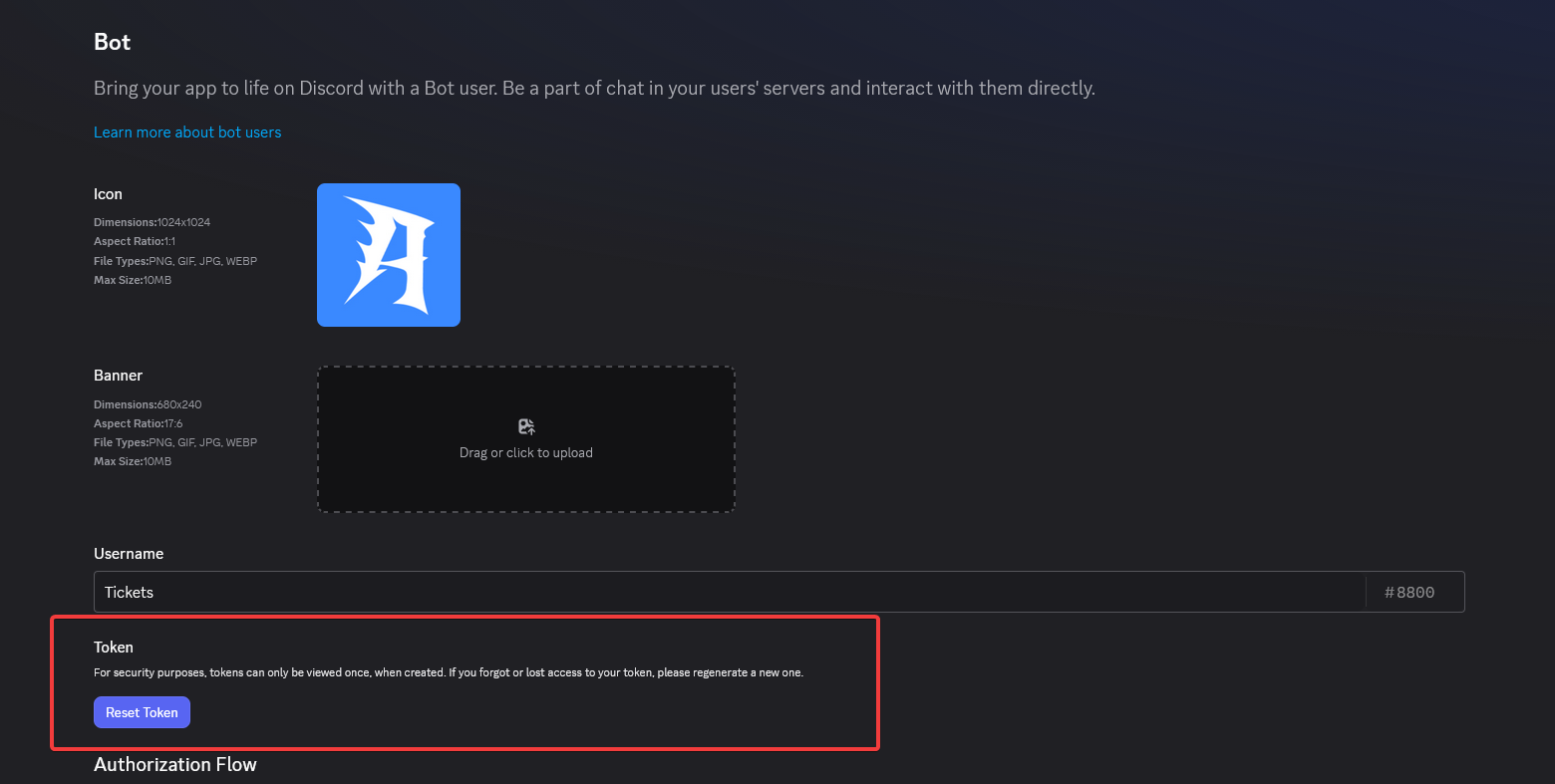
- Copy:
- Application ID
- Bot Token
2.2 Enable required intents
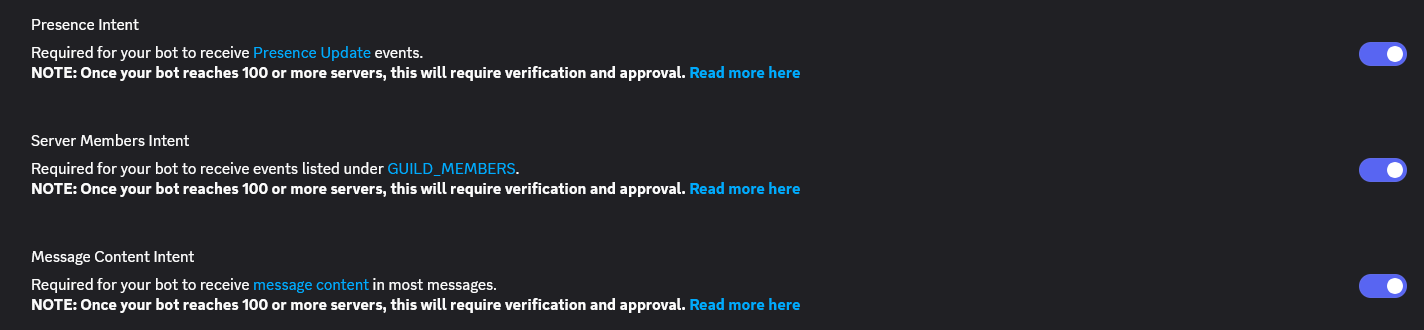
Enable these intents on the bot page:
- Presence Intent
- Server Members Intent
- Message Content Intent
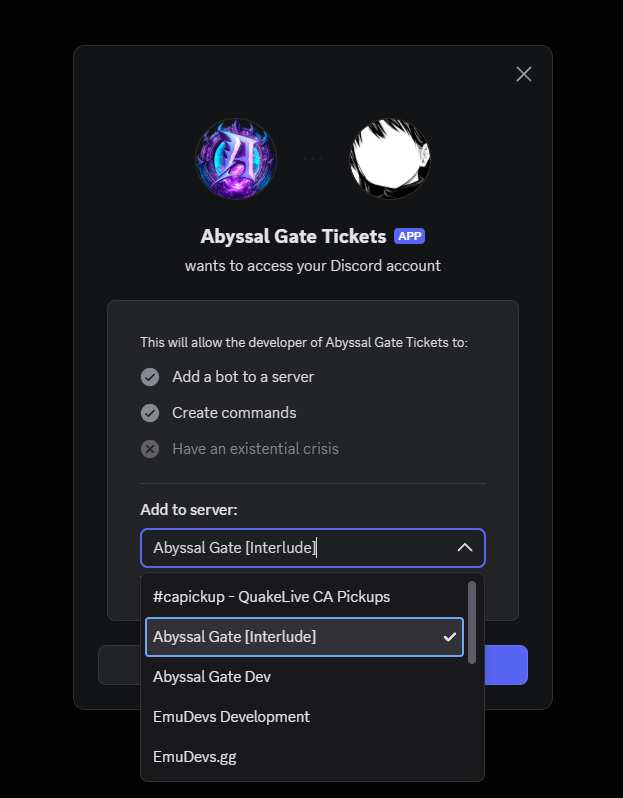
2.3 Invite bot to your server
Use OAuth2 URL generator with:
- Scopes:
bot,applications.commands - Permissions: admin for quick start (or equivalent granular permissions)
Invite URL template:
https://discord.com/api/oauth2/authorize?client_id=<your-application-id>&permissions=8&scope=bot%20applications.commands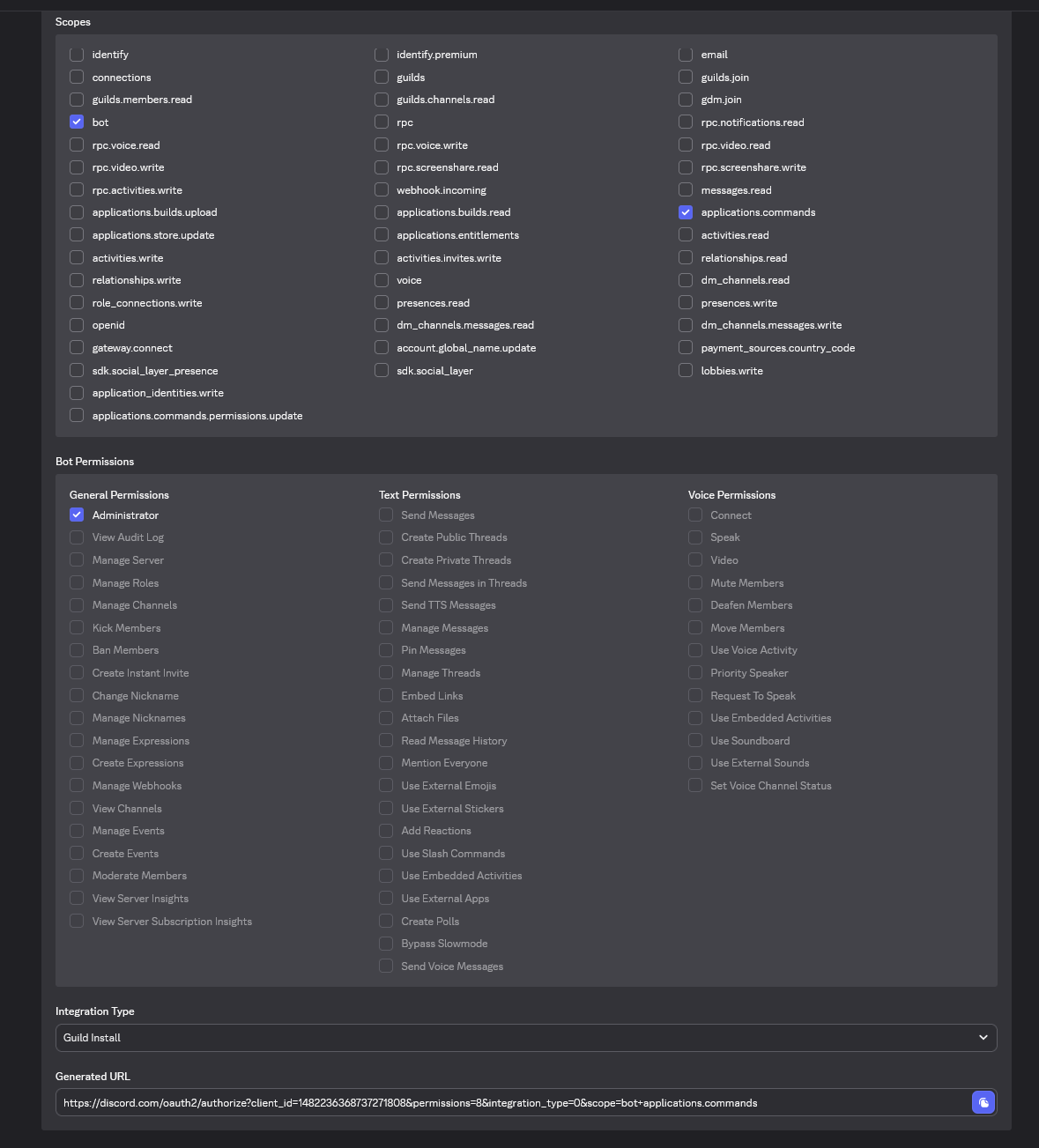
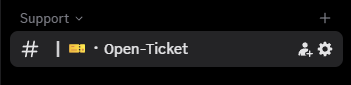
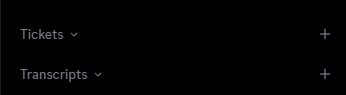
2.4 Prepare channels/categories/roles
Create/select:
- Ticket panel channel
- Staff queue channel
- Open tickets category
- Closed tickets category (optional)
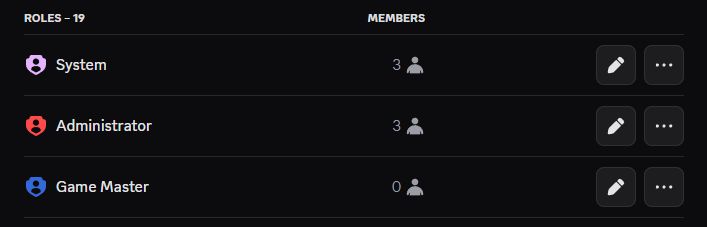
- Support staff roles
3) Nimera panel side setup
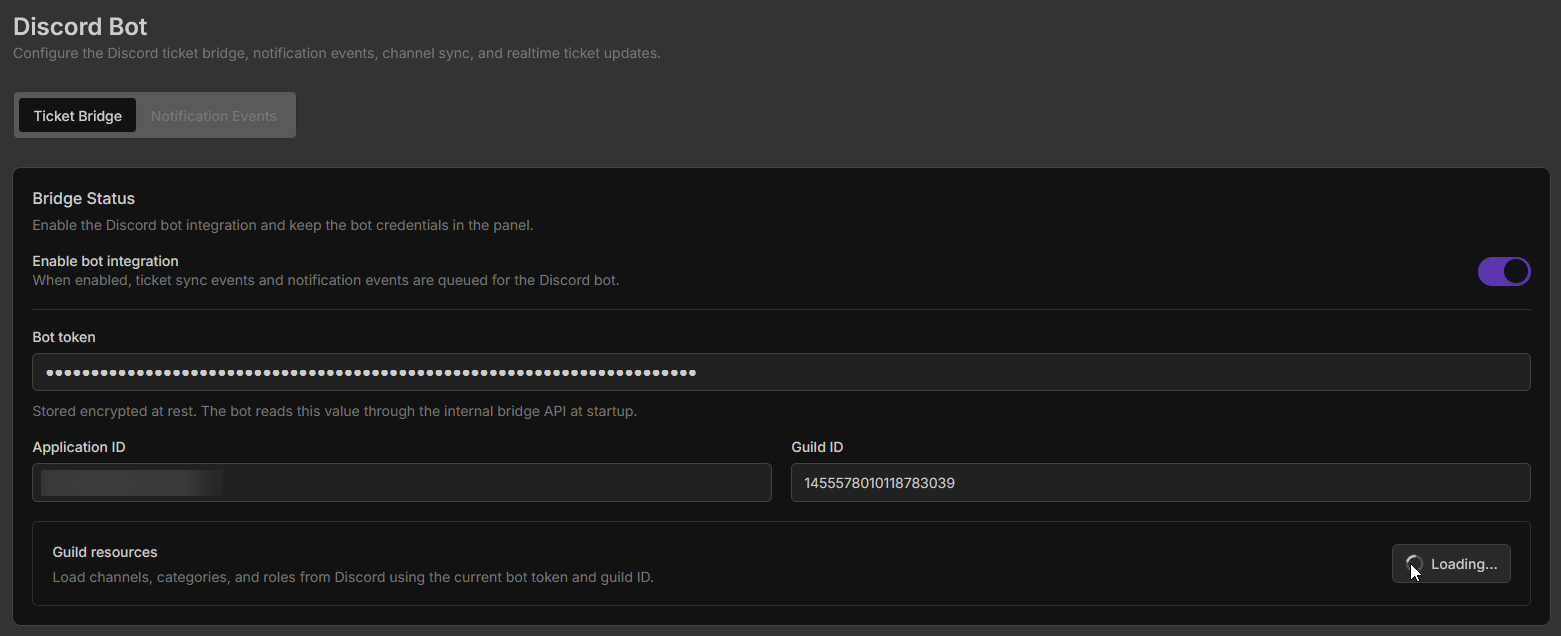
Open Admin -> Discord Bot in your panel.
3.1 Bridge Status
Configure:
- Enable bot integration
- Bot token
- Application ID
- Guild ID
Then click Load Discord Resources.
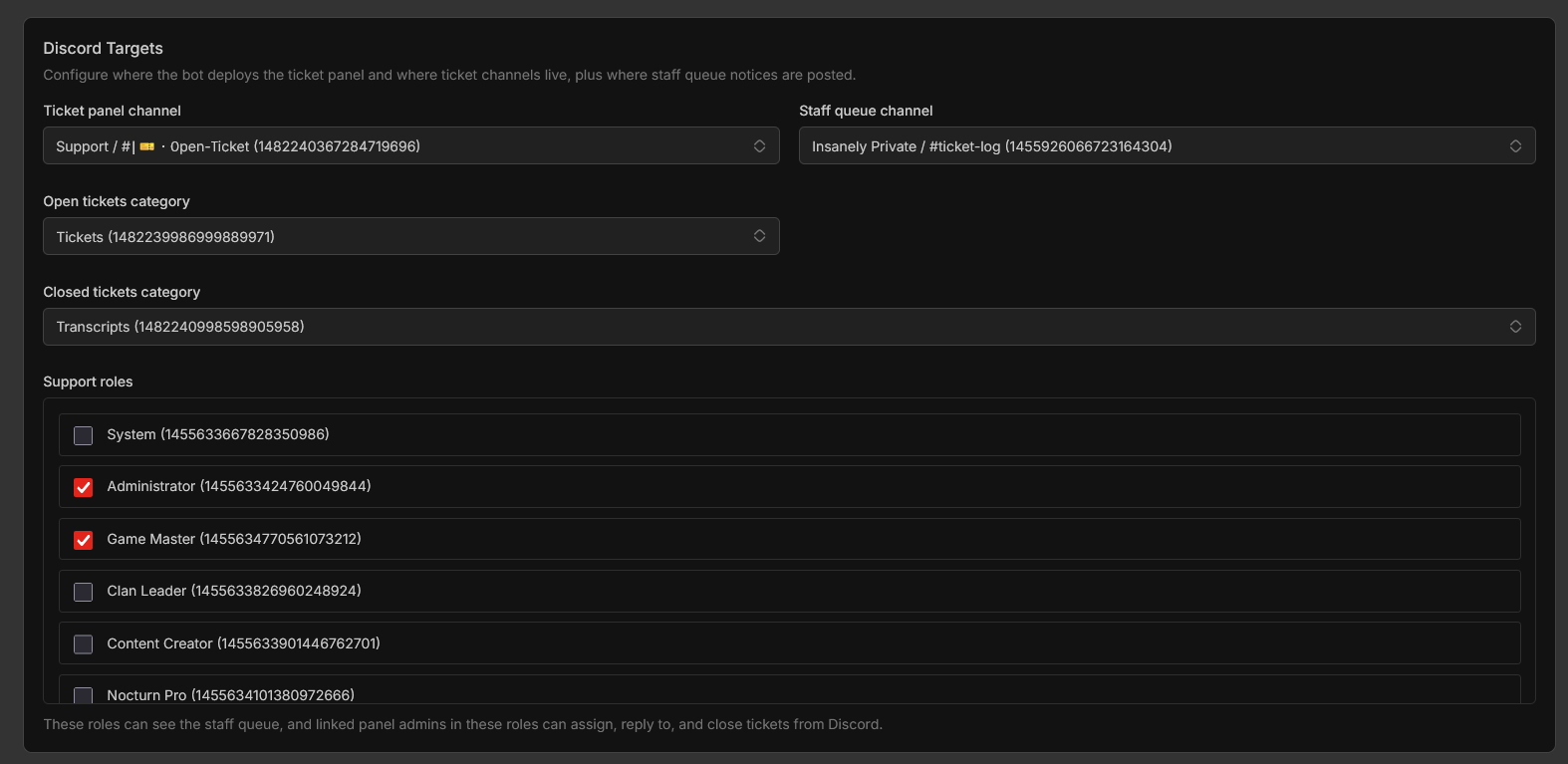
3.2 Discord Targets
Select targets:
- Ticket panel channel
- Staff queue channel
- Open tickets category
- Closed tickets category (optional)
- Support roles
Click Save.
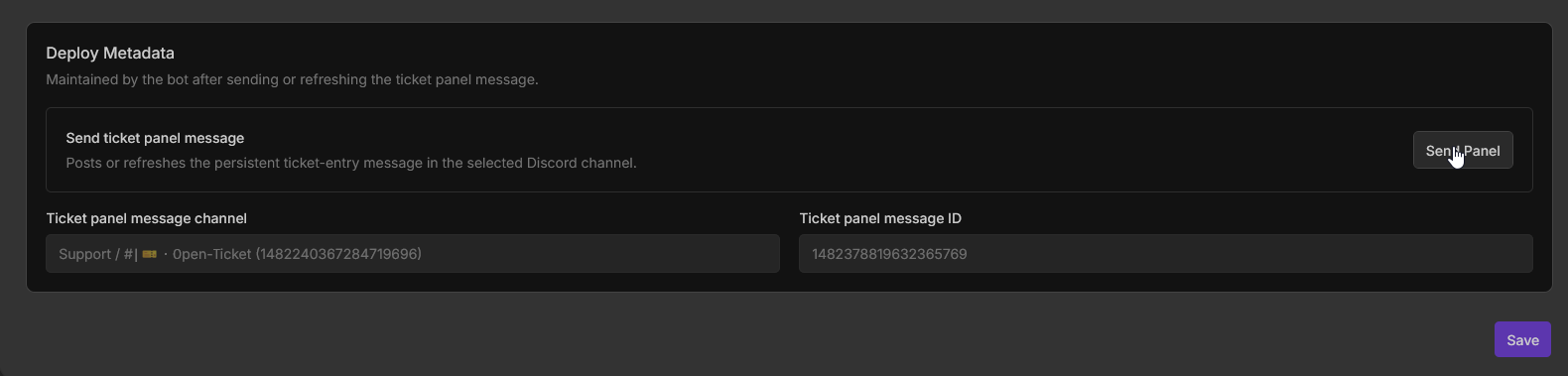
3.3 Deploy ticket panel message
In Deploy Metadata, click Send Panel.
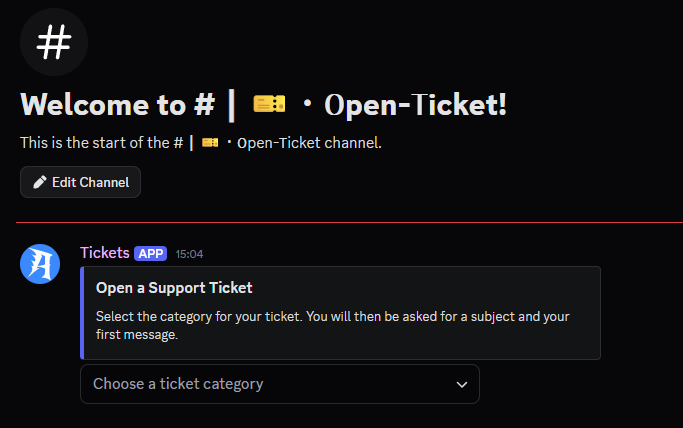
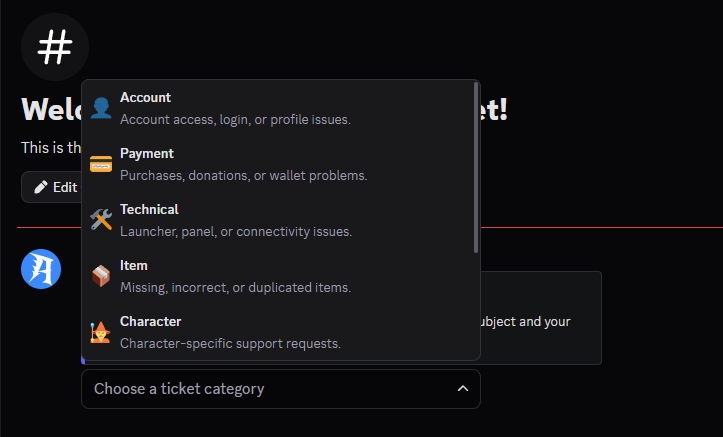
This posts (or refreshes) the ticket-entry panel message in Discord.
4) Verification checklist
- Bot deployment is
Running. - Bot is invited to the correct Discord server.
- Discord resources load successfully in panel.
- Ticket panel message is visible in configured channel.
- Test ticket creation syncs between Discord and panel.
Troubleshooting
"Deploy Panel first before deploying a bot"
Create and run panel deployment first, then deploy bot.
Discord resources load failed
Verify bot token, guild ID, bot invite, and enabled intents.
Send Panel failed
Verify ticket panel channel exists and at least one active ticket category is configured.
Custom domain options on bot
Bot deployments intentionally do not use custom domains.